If you manage multiple SEO clients, the fastest wins come from turning messy data into clear, client-ready insights—without waiting on engineering. Your team already exports GA4 reports, Search Console queries, and backlink files. The challenge is pulling these pieces together fast enough to spot trends and deliver recommendations before the next deadline.
Pulling GA4, GSC, and backlink exports into a single view takes hours each month. Even then, finding patterns like cannibalization or low-CTR wins is slow, error-prone, and hard to scale across dozens of reports. Manual copy-paste workflows break when data structures change. Formatting inconsistencies make client presentations look rushed.
This guide shows an end-to-end Google Sheets workflow for importing, cleaning, analyzing, and presenting SEO data—with templates and tips to automate recurring reporting. You’ll learn practical pipelines that turn raw exports into prioritized actions, complete with QA checklists to reduce rework. When monthly updates become repetitive, you can transition to automated SEO dashboards that refresh data without rebuilding your analysis.
Core SEO Datasets and Why They Matter
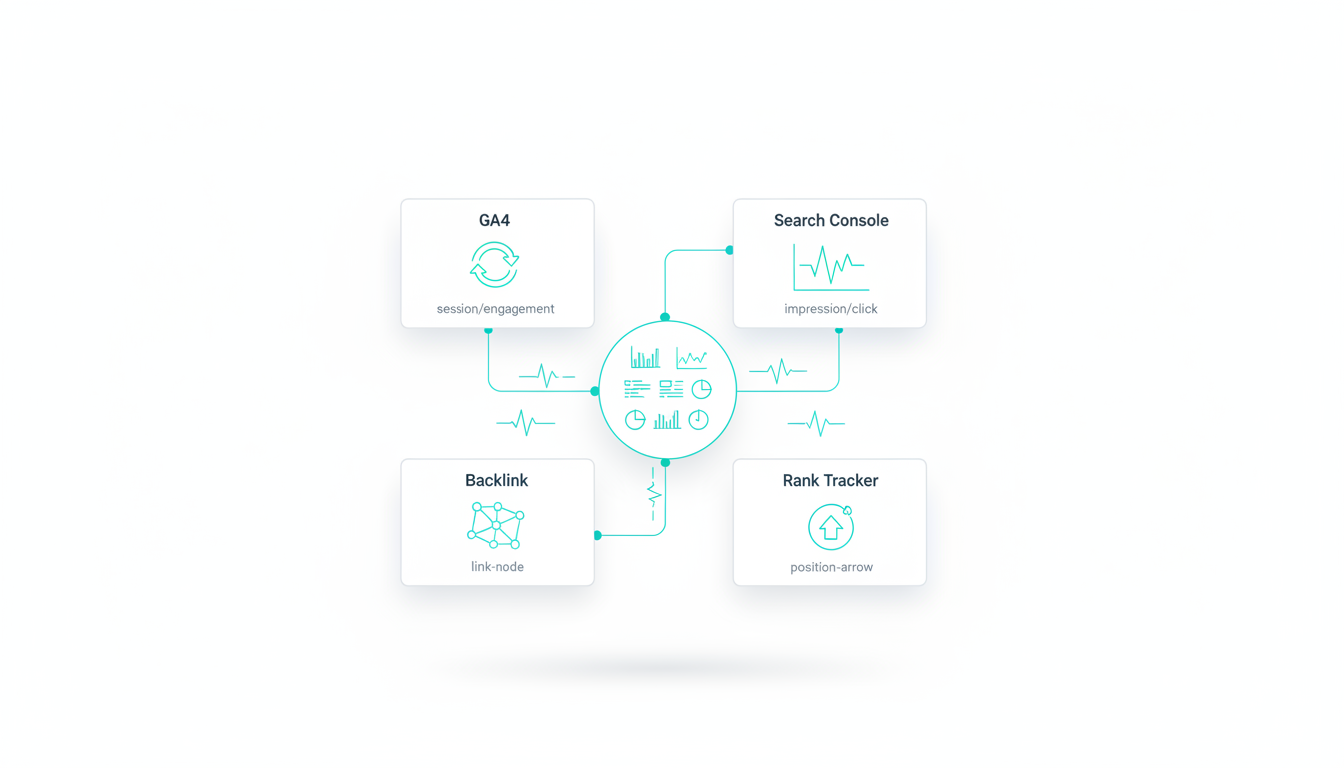
Every SEO analysis starts with four foundational datasets. Understanding what each one reveals—and how they connect—helps you build analysis workflows that answer real business questions instead of just organizing numbers.
GA4 Landing Page and Screen Data
GA4 tracks user behavior after the click. Landing page reports show which URLs drive sessions, engagement time, and conversions. Screen data reveals how visitors navigate through your site after arrival.
- Sessions: Total visits to each landing page
- Engagement rate: Percentage of sessions with meaningful interaction
- Average engagement time: How long users stay on the page
- Conversions: Goal completions attributed to each landing page
- Bounce rate equivalent: Sessions with no engagement (inverse of engagement rate)
Export landing page data from GA4 by navigating to Reports → Engagement → Landing page. Set your date range, then click the export icon and choose CSV format. This gives you a clean file with one row per landing page and columns for each metric.
Search Console Queries and Pages
GSC reveals what happens before the click. Query reports show which searches trigger your pages in results. Page reports show how each URL performs across all queries.
- Impressions: How often your page appeared in search results
- Clicks: How many users clicked through to your site
- CTR: Click-through rate (clicks divided by impressions)
- Average position: Where your page typically ranks for that query
Export from Search Console by going to Performance → Search results. Apply filters for date range and country if needed. Click the export button and select Google Sheets or CSV. Query reports work best when you filter by page to see all searches driving traffic to one URL.
Backlink and Anchor Text Data
Backlink files from tools like Ahrefs, Semrush, or Moz show who links to you and how. These exports typically include the linking domain, target URL, anchor text, and authority metrics.
- Linking domain: The site that placed the link
- Target URL: Which page on your site receives the link
- Anchor text: The clickable text used for the link
- Domain authority: Strength score for the linking site
- Link status: Whether the link is still live
Most backlink tools let you export filtered lists. Start with links to your domain from the past 90 days, then filter by dofollow status and minimum domain rating. This reduces file size and focuses on links that matter.
Keyword Tracking Lists
Rank tracking tools export position history for your target keywords. These files show how rankings change over time, typically with one row per keyword per date.
- Keyword: The search term you’re tracking
- Position: Current ranking (1-100)
- Previous position: Ranking from prior period
- URL: Which page ranks for this keyword
- Search volume: Monthly search estimates
Weekly exports work well for most clients. Export from your rank tracker as CSV, then import into a dedicated tab in your analysis sheet. This keeps historical data intact while you analyze week-over-week movement.
Data Hygiene: Clean Before You Analyze
Raw exports arrive with inconsistent formatting. URLs include tracking parameters. Text fields mix uppercase and lowercase. These quirks break formulas and create duplicate rows that skew your analysis.
URL Normalization Standards
Different tools export URLs in different formats. GA4 might show /product-page/ while GSC shows https://example.com/product-page. You need one consistent format to join datasets.
Create a normalized URL column using this formula pattern:
- Strip protocol: Remove http:// and https://
- Remove domain: Keep only the path portion
- Remove parameters: Strip everything after ? or #
- Remove trailing slash: Standardize ending format
- Convert to lowercase: Eliminate case mismatches
In Google Sheets, combine REGEXREPLACE with LOWER to clean URLs. Apply this formula to a helper column, then use the cleaned version for all lookups and joins. This single step eliminates 80% of join failures.
Parameter Stripping and Case Normalization
Tracking parameters like utm_source and session IDs make the same page appear as multiple rows. Strip these before analysis to get accurate totals.
Use REGEXREPLACE to remove query strings: =REGEXREPLACE(A2,"\\?.*",""). This pattern finds the question mark and deletes everything after it. Run this on URLs before aggregating clicks or sessions.
Case normalization prevents “Product-Page” and “product-page” from appearing as separate entries. Wrap URL columns in LOWER or UPPER functions. Pick one standard and apply it everywhere.
Date Format Consistency
GA4 exports dates as YYYYMMDD. Search Console uses YYYY-MM-DD. Backlink tools vary. Convert everything to a single format before running time-series analysis.
- Use TEXT function to reformat:
=TEXT(A2,"YYYY-MM-DD") - Or use DATE to parse components:
=DATE(LEFT(A2,4),MID(A2,5,2),RIGHT(A2,2)) - Set column format to Date in Sheets to enable sorting
Consistent dates let you filter by week or month using WEEKNUM and MONTH functions. This is critical for tracking keyword movement and comparing reporting periods.
Key SEO KPIs and What They Reveal
Tracking the right metrics separates busy work from insights. These KPIs answer the questions clients actually care about: Are we getting more visibility? Are visitors converting? Where should we focus next?
Visibility and Traffic Metrics
Impressions from Search Console show how often your pages appear in search results. Rising impressions mean better rankings or more searches for your keywords. Falling impressions signal ranking drops or seasonal declines.
Clicks measure how many users actually visit from search results. Compare clicks to impressions to calculate CTR. A page with high impressions but low clicks needs better titles or meta descriptions.
Sessions from GA4 count total visits to your site. Landing page sessions show which pages drive the most traffic. Compare GA4 sessions to GSC clicks to spot tracking discrepancies or bot traffic.
Engagement and Quality Metrics
Average engagement time reveals how long visitors stay on each page. Pages with high traffic but low engagement time might have misleading titles or thin content. Engagement time above 2 minutes typically indicates valuable content.
Engagement rate shows the percentage of sessions with meaningful interaction. GA4 defines engagement as sessions lasting over 10 seconds, with a conversion, or viewing 2+ pages. Low engagement rates suggest a mismatch between search intent and page content.
Pages per session measures how many pages visitors view during their visit. Higher numbers indicate good internal linking and relevant content recommendations. Single-page sessions suggest visitors didn’t find what they needed.
Conversion and Revenue Metrics
Conversions track goal completions like form submissions, purchases, or downloads. Landing page conversion reports show which pages drive the most valuable actions. Blend this with GSC data to find high-traffic, low-conversion pages worth optimizing.
Conversion rate divides conversions by sessions to show percentage of visitors who complete goals. Industry benchmarks vary, but 2-5% is typical for lead generation. Ecommerce sites often see 1-3% depending on product and price point.
Assisted conversions credit pages that appear in the path to conversion but aren’t the final landing page. These reveal which content educates visitors before they convert. Blog posts and guides often show high assisted conversion values.
Position and Ranking Metrics
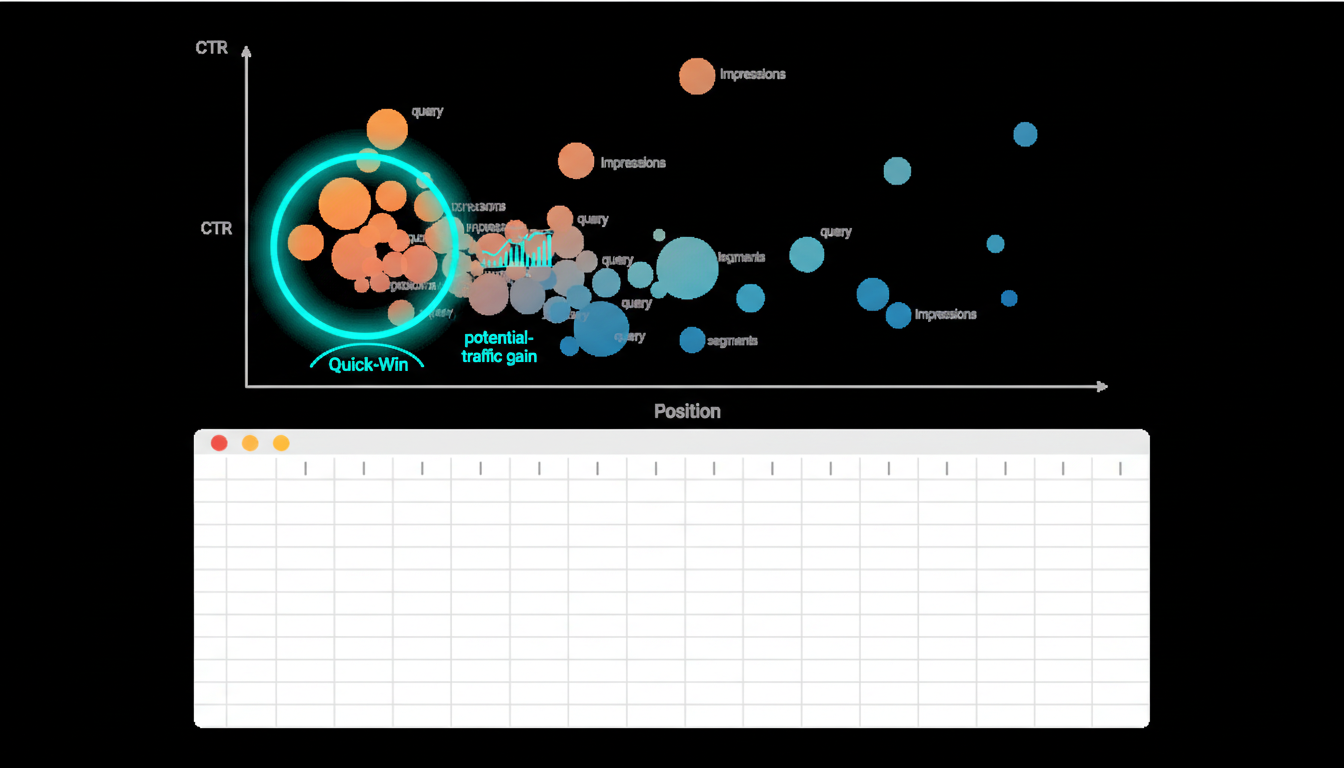
Average position from GSC shows where your page typically ranks for a query. Positions 1-3 capture most clicks. Position 4-10 (bottom of page one) offers quick-win opportunities. Positions 11-20 (page two) need content refreshes or more backlinks.
Position movement tracks ranking changes over time. Calculate this by subtracting previous position from current position. Positive numbers mean ranking drops. Negative numbers mean improvements. Track movement weekly to catch algorithm updates early.
Keyword distribution shows how many keywords rank in each position range. A healthy profile has keywords spread across positions 1-10, with concentration in top 3. Too many keywords in positions 11-20 suggests content needs strengthening.
Building Your First Analysis: CTR vs Position Opportunity Model
This workflow identifies queries where you rank well but get fewer clicks than expected. These represent quick wins—small title or meta description changes can boost traffic without ranking improvements.
Import and Prepare GSC Query Data
Export query data from Search Console for the past 90 days. Include clicks, impressions, CTR, and position columns. Save as CSV and import into a new Google Sheet tab named “GSC_Queries”.
Clean the data by removing queries with fewer than 10 impressions. These create noise and rarely matter for traffic. Use Filter views to hide low-impression rows without deleting them.
Add a helper column called “Position_Bucket” that groups positions into ranges:
- 1-3: Top of page one
- 4-10: Bottom of page one
- 11-20: Page two
- 21+: Beyond page two
Use an IFS formula: =IFS(D2<=3,"1-3",D2<=10,"4-10",D2<=20,"11-20",TRUE,"21+"). This lets you calculate average CTR by position range.
Calculate Expected CTR Benchmarks
Create a reference table showing average CTR for each position bucket. Use AVERAGEIF to calculate actual CTR across all queries in each bucket:
- Position 1-3: ~25-35% CTR
- Position 4-10: ~5-15% CTR
- Position 11-20: ~1-5% CTR
- Position 21+: ~0.5-2% CTR
Your actual averages will vary by industry and query type. Branded queries show higher CTR. Informational queries show lower CTR. Calculate separately for branded vs non-branded if you have volume.
Add a column called “Expected_CTR” that looks up the benchmark for each query’s position bucket. Use XLOOKUP or VLOOKUP to match position bucket to your reference table.
Identify Underperforming Queries
Create a “CTR_Delta” column that subtracts expected CTR from actual CTR: =C2-E2. Negative numbers indicate underperformance. Sort by CTR_Delta ascending to find the biggest gaps.
Focus on queries with three characteristics:
- High impressions: At least 100 per month to make optimization worthwhile
- Good position: Ranking in top 10 so CTR improvements matter
- Large CTR gap: Actual CTR at least 5 percentage points below expected
These queries represent immediate traffic opportunities. A title tag test or meta description rewrite can boost clicks without changing rankings. Calculate potential traffic gain by multiplying impressions by the CTR gap.
Create Priority Action List
Build a final tab called “CTR_Opportunities” with these columns:
- Query
- Current CTR
- Expected CTR
- CTR Gap
- Impressions
- Potential Traffic Gain
- Landing Page
- Current Title
- Recommended Action
Sort by Potential Traffic Gain descending. This shows which optimizations deliver the most clicks. Review current titles and meta descriptions for the top 20 queries. Common issues include missing keywords, vague promises, or titles that don’t match search intent.
For each opportunity, write a recommended action: “Add target keyword to title,” “Clarify value proposition in meta,” or “Test question-format title.” This turns analysis into a client-ready action plan.
Tracking Keyword Movement Across Segments

Weekly ranking changes reveal algorithm updates, competitor activity, and content performance. This workflow segments keywords by topic or page type so you can spot patterns instead of drowning in individual ranking shifts.
Set Up Weekly Rank Tracking Imports
Export ranking data from your rank tracker every Monday. Include keyword, position, URL, and search volume columns. Name files with the date: “Rankings_2024-01-08.csv”.
Create a tab called “Rankings_Current” and import this week’s data. Create a second tab called “Rankings_Previous” for last week’s data. This two-tab structure makes week-over-week comparisons simple.
Add a “Segment” column that categorizes keywords by topic or intent. Use REGEXMATCH to auto-assign segments based on keyword text:
- Branded: Contains company name
- Product: Contains product names or categories
- Informational: Contains “how to,” “what is,” “guide”
- Commercial: Contains “best,” “review,” “comparison”
Manual tagging works for smaller keyword lists. Use a dropdown list in the Segment column to maintain consistency across weeks.
Calculate Position Changes
Create a new tab called “Movement_Analysis”. Use XLOOKUP to match current rankings with previous rankings by keyword:
=XLOOKUP(A2,Rankings_Previous!$A:$A,Rankings_Previous!$B:$B,"Not Ranked")
This formula finds each keyword in the previous week’s data and returns its old position. If the keyword wasn’t ranking before, it shows “Not Ranked”.
Add a “Position_Change” column: =C2-B2. Positive numbers mean ranking dropped. Negative numbers mean ranking improved. Filter for changes greater than +/-3 positions to focus on significant movement.
Visualize Movement by Segment
Create a pivot table with Segment as rows and Position_Change as values. Use COUNTA to show how many keywords moved in each segment. Add a second value field using AVERAGE to show average movement per segment.
This reveals which topics gained or lost visibility. If your Product segment shows average movement of -5 (improved by 5 positions), that’s a strong signal. If Informational keywords dropped by +8 positions, an algorithm update might have hit educational content.
Add a SPARKLINE column to show ranking trends over multiple weeks. Store historical position data in separate tabs, then reference those ranges in your sparkline formula. This creates mini-charts showing each keyword’s trajectory.
Build a Watchlist for High-Value Keywords
Create a filtered view showing keywords with these criteria:
- Search volume above 500 per month
- Current position 4-20 (page one bottom or page two)
- Position improved by 3+ spots in past month
These represent momentum opportunities. Keywords moving from position 15 to 12 might reach position 5-7 with targeted optimization. Add internal links, refresh content, or build backlinks to these pages.
Share this watchlist with content and link building teams. When you see upward movement, double down with more optimization. When you see drops, investigate quickly before rankings fall further.
Landing Page Performance Triage
Blending GA4 engagement data with GSC visibility metrics reveals which pages deserve attention. High-impression pages with low engagement need content fixes. High-engagement pages with low impressions need more backlinks or internal links.
Join GA4 and GSC Data by URL
Export landing page data from GA4 including sessions, engagement rate, and conversions. Export page performance from GSC including impressions, clicks, and average position. Import both into separate tabs.
Create a new tab called “Page_Performance”. List all unique URLs from both sources. Use UNIQUE to combine URL lists: =UNIQUE({GA4_Data!A:A;GSC_Data!A:A}).
Use XLOOKUP to pull metrics from both sources into one row per URL:
- GSC impressions:
=XLOOKUP(A2,GSC_Data!$A:$A,GSC_Data!$B:$B,0) - GSC clicks:
=XLOOKUP(A2,GSC_Data!$A:$A,GSC_Data!$C:$C,0) - GA4 sessions:
=XLOOKUP(A2,GA4_Data!$A:$A,GA4_Data!$B:$B,0) - GA4 engagement rate:
=XLOOKUP(A2,GA4_Data!$A:$A,GA4_Data!$D:$D,0)
This unified view shows both visibility (impressions) and performance (engagement rate) for each page. Pages with data from only one source indicate tracking issues or new content.
Create Performance Quadrants
Calculate median impressions and median engagement rate across all pages. Use MEDIAN function on each column. These medians become your quadrant dividers.
Add a “Quadrant” column using IFS:
- High Visibility, High Engagement: Above median on both – these are your winners
- High Visibility, Low Engagement: Above median impressions, below median engagement – fix content
- Low Visibility, High Engagement: Below median impressions, above median engagement – build links
- Low Visibility, Low Engagement: Below median on both – consider pruning or major refresh
Filter to “High Visibility, Low Engagement” quadrant first. These pages get traffic but fail to engage visitors. Common fixes include:
- Content doesn’t match search intent (informational query landing on product page)
- Slow page load times
- Poor mobile experience
- Thin content that doesn’t answer the query
- No clear next steps or internal links
Review top 10 pages in this quadrant. Check actual page content against top-ranking queries from GSC. Look for intent mismatches and content gaps.
Prioritize Optimization Actions
Create columns for “Action Type” and “Estimated Impact”. Action types include:
- Content refresh: Update outdated information, add depth
- Internal linking: Add contextual links from high-authority pages
- Technical fixes: Improve page speed, mobile usability
- UX improvements: Better CTAs, clearer navigation
- Link building: Acquire backlinks to boost visibility
Estimate impact by calculating potential traffic gain. For low-engagement pages, multiply current sessions by the difference between current engagement rate and site average. This shows how many sessions you could “save” by improving engagement.
For low-visibility pages with high engagement, estimate traffic gain by looking at similar pages with better rankings. If a comparable page ranks position 5 and gets 1,000 impressions while your page ranks position 15 with 200 impressions, the gap is 800 impressions. Multiply by site average CTR to estimate potential clicks.
Backlink Cleanup and Prospecting
Backlink data reveals both opportunities and risks. Toxic links hurt rankings. Missing links from competitors show gaps. Anchor text patterns signal over-optimization risks.
Import and Categorize Backlink Data
Export backlinks from your preferred tool (Ahrefs, Semrush, Moz). Include linking domain, target URL, anchor text, domain rating, and link status. Import into a tab called “Backlinks_Raw”.
Add a “Link_Type” column using REGEXMATCH to categorize anchor text:
- Branded: Contains company name
- Exact match: Contains target keyword exactly
- Partial match: Contains variations of target keyword
- Generic: “Click here,” “learn more,” “website”
- URL: Raw URL as anchor text
- Other: Descriptive phrases without keywords
Calculate anchor text distribution using COUNTIF. Natural link profiles show 40-60% branded anchors, 20-30% generic, 10-20% partial match, and under 10% exact match. Profiles with over 20% exact match anchors risk over-optimization penalties.
Identify Toxic Link Candidates
Create a filtered view showing potential toxic links. Filter criteria:
- Domain rating below 20 (low-authority sites)
- Anchor text contains adult, gambling, or pharma keywords
- Linking domain has “blogspot,” “wordpress.com,” or other blog platform in URL
- Link status shows “broken” or “redirect”
Review this list manually. Not all low-DR links are toxic. A relevant local business link with DR 15 can be valuable. Focus on links from spam directories, link farms, or unrelated foreign-language sites.
Add a “Disavow” column with Yes/No values. Export the “Yes” rows to a text file formatted for Google’s Disavow Tool. One domain per line, using “domain:” prefix to disavow all links from that domain.
Find Link Building Opportunities
Create a new tab called “Competitor_Backlinks”. Import backlink data for your top 3 competitors. Focus on links they have that you don’t.
Use XLOOKUP to check if each competitor linking domain also links to you. Formula: =XLOOKUP(A2,Backlinks_Raw!$A:$A,Backlinks_Raw!$A:$A,"No Link").
Filter for “No Link” results. These domains link to competitors but not to you. Sort by domain rating descending to prioritize high-authority targets.
Add columns for “Outreach Status” and “Contact Info”. This becomes your link prospecting list. Research each domain to understand what content they link to, then craft outreach emails offering similar value.
Monitor Anchor Text Balance
Create a pivot table showing anchor text distribution over time. If you import backlink data monthly, you can track how anchor text ratios change.
Set up conditional formatting to highlight concerning patterns:
- Exact match anchors above 15% (yellow warning)
- Exact match anchors above 25% (red alert)
- Branded anchors below 30% (yellow warning)
When you see exact match percentage rising, adjust your link building strategy. Request more branded and generic anchors in guest posts and partnerships. This keeps your profile looking natural.
Automation Pathways: When to Move Beyond Sheets
Google Sheets works well for one-off analysis and small client rosters. As your agency grows, manual updates become a bottleneck. Recognizing when to automate saves hours of repetitive work.
Signs You’ve Outgrown Manual Reporting
You’re ready for automation when you notice these patterns:
- Spending 4+ hours per month per client on report updates
- Copy-pasting the same data exports every week
- Missing reporting deadlines due to manual workload
- Making errors in formulas or data joins
- Clients requesting real-time dashboard access
- Managing 5+ clients with monthly reporting needs
These signals indicate your process needs scaling. Manual Sheets workflows remain valuable for ad-hoc analysis, but recurring reports benefit from automation.
Connecting Sheets to Live Data Sources
Before moving to dedicated platforms, try semi-automated solutions. Google Sheets supports several connection methods:
IMPORTDATA pulls CSV files from URLs. Host your export files on cloud storage, then reference the URL in Sheets. This works for daily or weekly refreshes but requires maintaining the export process.
Apps Script can fetch data from APIs directly. Write scripts to pull GA4, GSC, or other data on schedule. This requires JavaScript knowledge but offers full control. Scripts can run automatically on triggers.
Add-ons like Supermetrics or Windsor.AI connect marketing platforms to Sheets. These tools handle API authentication and data formatting. They cost money but save development time.
Watch this video about google sheets seo data analysis:
Watch this video about google sheets SEO data analysis:
Each approach has trade-offs. Add-ons are fastest to implement. Apps Script offers most flexibility. IMPORTDATA works for simple CSV workflows. Choose based on your team’s technical skills and budget.
Transitioning to Automated Dashboards
When Sheets becomes limiting, automated SEO dashboards offer a natural next step. These platforms pull data directly from source APIs and update automatically.
Key advantages over manual Sheets workflows:
- Real-time data: No more waiting for exports and imports
- Client access: Share live dashboards instead of static reports
- Consistent formatting: No formula errors or broken references
- Scalability: Add new clients without increasing workload
- White-label branding: Present under your agency brand
The transition process is straightforward. Export your Sheets templates as reference. Configure dashboard widgets to match your existing KPIs. Most platforms offer templates that mirror common Sheets reports.
Keep Sheets for exploratory analysis. Use automated dashboards for recurring client reports. This hybrid approach combines flexibility with efficiency.
Building Scalable Reporting Systems
Whether you stick with Sheets or move to automation, scalable systems share common traits:
- Standardized templates: One template per report type, customized per client
- Documentation: Data dictionaries explaining each metric and formula
- QA checklists: Verify data accuracy before sharing with clients
- Version control: Track changes to templates and formulas
- Access management: Clear permissions for team members and clients
These practices work in Sheets or dedicated platforms. They reduce errors, speed onboarding, and make your reporting process teachable to new team members.
Template Pack: Ready-to-Use Analysis Sheets


These templates implement the workflows described above. Copy them to your Google Drive and customize for your clients. Each includes sample data, formulas, and instructions.
CTR vs Position Opportunity Finder
This template identifies underperforming queries based on CTR benchmarks. It includes:
- GSC query import tab with normalization formulas
- Position bucket calculations
- Expected CTR lookup table
- CTR delta and opportunity scoring
- Priority action list with traffic gain estimates
Replace the sample data with your GSC export. The formulas auto-calculate opportunities. Sort by potential traffic gain to find quick wins.
Keyword Movement Tracker
This template compares weekly rankings and segments keywords by topic. Features include:
- Current and previous week import tabs
- Automated position change calculations
- Segment classification formulas
- Movement pivot table
- Sparkline trend charts
- High-value keyword watchlist
Import new ranking data each week. The movement analysis tab updates automatically. Use the watchlist view to track momentum keywords.
Landing Page Performance Triage
This template blends GA4 and GSC data to categorize pages by performance. Includes:
- GA4 landing page import tab
- GSC page performance import tab
- Unified page list with lookup formulas
- Performance quadrant classification
- Action prioritization framework
- Impact estimation calculations
Import data from both sources. The unified view shows which pages need attention. Filter by quadrant to focus optimization efforts.
Backlink Audit and Prospecting
This template organizes backlink data and identifies opportunities. Contains:
- Backlink import tab with categorization formulas
- Anchor text distribution analysis
- Toxic link identification filters
- Competitor backlink comparison
- Link prospecting target list
- Disavow file generator
Import backlink exports from your preferred tool. The categorization formulas run automatically. Review flagged toxic links manually before disavowing.
QA Checklist: Validate Your Analysis
Run through this checklist before sharing reports with clients. It catches common errors and ensures data accuracy.
Data Import Verification
Confirm your imports match source data:
- Row counts: Compare imported rows to export file row counts
- Date ranges: Verify start and end dates match your reporting period
- Column headers: Check that all expected columns imported correctly
- Data types: Ensure numbers import as numbers, not text
- Missing values: Look for unexpected blank cells
Use COUNTA to count non-empty cells. Compare to source file. Mismatches indicate import errors or filtered data.
Formula and Join Verification
Check that formulas return expected results:
- Lookup errors: Search for #N/A errors in XLOOKUP or VLOOKUP columns
- Division by zero: Find #DIV/0! errors in percentage calculations
- Reference errors: Look for #REF! from deleted columns or sheets
- Sample validation: Manually verify 5-10 formula results
Use IFERROR to handle missing data gracefully. Return zero or “No Data” instead of error codes. This keeps reports clean and professional.
Data Normalization Checks
Verify cleaning formulas worked correctly:
- URL consistency: Spot-check that URLs match between joined datasets
- Case normalization: Confirm all URLs use same case
- Parameter stripping: Check that query strings were removed
- Date formatting: Verify dates sort chronologically
- Trailing slashes: Ensure consistent URL endings
Filter for duplicate URLs after normalization. Duplicates indicate incomplete cleaning. Review and fix normalization formulas if you find dupes.
Metric Reasonableness Tests
Sanity-check your calculated metrics:
- CTR percentages: Should be between 0% and 100%
- Position changes: Rarely exceed +/- 50 positions in one week
- Traffic spikes: Investigate sudden 10x increases or drops
- Conversion rates: Compare to historical averages and industry benchmarks
Create a summary dashboard showing min, max, and average for key metrics. Review for outliers. Investigate any values that seem impossible.
Troubleshooting Common Issues
Even clean workflows hit snags. These solutions address the most frequent problems.
IMPORTXML and IMPORTHTML Quota Errors
Google Sheets limits IMPORT functions to prevent abuse. When you hit quotas, formulas show “Loading…” indefinitely or return errors.
Solutions:
- Reduce frequency: Import once daily instead of real-time
- Cache results: Copy imported data and paste as values
- Split across sheets: Distribute imports across multiple files
- Use Apps Script: Fetch data via UrlFetchApp instead
- Switch to add-ons: Dedicated connectors have higher limits
For critical data, avoid IMPORT functions entirely. Use CSV uploads or API connections through Apps Script. This eliminates quota concerns.
REGEXEXTRACT Patterns Not Matching
Regex formulas fail when patterns don’t account for data variations. Common issues:
- Case sensitivity: Regex is case-sensitive by default
- Special characters: Need escaping with backslash
- Greedy matching: Captures too much text
- Optional elements: Pattern assumes structure that’s not always present
Test regex patterns on sample data first. Use regex testing tools like regex101.com to debug. Add error handling with IFERROR to return blanks instead of errors.
Slow Sheet Performance
Large datasets and complex formulas make Sheets sluggish. Speed improvements:
- Limit array formulas: Replace ARRAYFORMULA with copied formulas when possible
- Reduce volatile functions: Minimize NOW, TODAY, RAND, IMPORTRANGE
- Use filter views: Instead of filtering source data repeatedly
- Archive old data: Move historical data to separate sheets
- Simplify lookups: Use XLOOKUP instead of nested VLOOKUP
For datasets over 50,000 rows, consider splitting into multiple sheets. Link them with IMPORTRANGE only where necessary.
GSC Export Limits
Search Console limits exports to 1,000 rows in the UI. For larger datasets, use the API or bulk export feature.
Workarounds:
- Filter before export: Limit to specific date ranges or pages
- Use GSC API: Fetch up to 25,000 rows per request
- Apps Script connector: Automate API calls and combine results
- Third-party tools: Many SEO platforms offer unlimited GSC exports
For agencies managing multiple clients, API access is worth the setup time. Apps Script can pull data for all clients and organize into separate sheets automatically.
Presenting Insights to Clients
Raw data overwhelms clients. Your job is translating numbers into actions they understand and care about.
Focus on Business Impact
Start every report section with the “so what.” Don’t lead with “CTR increased 2.3%.” Lead with “This traffic improvement will generate an estimated 45 additional leads this month.”
Connect metrics to outcomes clients value:
- Traffic → Leads → Revenue
- Rankings → Visibility → Brand awareness
- Engagement → User experience → Conversion rate
Use conditional formatting to highlight wins and concerns. Green for improvements, red for declines, yellow for watch items. This helps clients scan reports quickly.
Prioritize Recommendations
Never present more than 5 action items at once. Clients can’t execute 20 recommendations. Rank by impact and effort:
- Quick wins: High impact, low effort (title tag tests, internal linking)
- Strategic projects: High impact, high effort (content refreshes, technical fixes)
- Maintenance tasks: Low impact, low effort (monitoring, minor tweaks)
- Long-term bets: Uncertain impact, high effort (new content types, link building)
Focus reports on quick wins and strategic projects. Mention maintenance and long-term items but don’t dwell on them. Clients want to see progress, not busy work.
Use Visual Comparisons
Charts beat tables for showing trends. Use SPARKLINE for inline mini-charts. Create comparison charts showing:
- This month vs last month
- This quarter vs same quarter last year
- Client performance vs industry benchmarks
Keep charts simple. One metric per chart. Clear axis labels. Avoid 3D effects and excessive colors. The goal is instant comprehension.
Provide Context for Changes
Explain why metrics moved. Clients see ranking drops and panic. Your job is adding context:
- “Rankings dropped due to Google algorithm update affecting informational content”
- “Traffic increased after we added internal links from high-authority pages”
- “Conversions improved following landing page UX changes”
Link changes to actions taken. This demonstrates your work’s value and builds trust. When metrics decline despite your efforts, explain external factors (algorithm updates, seasonality, competitor activity).
Scaling from Manual to Automated Reporting

The workflows above work great for getting started. As your client roster grows, automation becomes necessary. Here’s how to transition without losing your analysis capabilities.
Identify Recurring vs One-Time Analysis
Separate reports into two categories:
Recurring reports happen monthly or weekly with the same structure:
- Monthly performance summaries
- Weekly ranking updates
- Quarterly goal tracking
One-time analysis answers specific questions:
- Content cannibalization audits
- Competitor gap analysis
- Migration impact assessment
Automate recurring reports. Keep Sheets for one-time analysis. This division maximizes efficiency while preserving flexibility.
Template Your Sheets Workflows
Before automating, standardize your manual process. Create master templates with:
- Data import tabs: Standard column names and formats
- Analysis tabs: Formulas that reference import tabs
- Summary tabs: Client-facing views with charts
- Instructions tab: Steps for updating with new data
Document every formula. Explain what it does and why. This makes templates teachable to team members and easier to translate into automated systems.
Choose the Right Automation Level
Automation exists on a spectrum. Pick the level that matches your needs:
Level 1 – Scheduled exports: Tools export data to CSV on schedule, you import to Sheets. Saves export time but still manual.
Level 2 – Connected Sheets: Add-ons pull data directly into Sheets automatically. Reduces manual steps but still requires Sheet maintenance.
Level 3 – Dashboard platforms: Dedicated tools like white-label SEO reporting platforms handle everything automatically. No Sheet updates needed.
Most agencies progress through these levels as they grow. Start with Level 1, move to Level 2 when managing 5+ clients, jump to Level 3 at 10+ clients or when time savings justify the cost.
Maintain Analysis Capabilities
Automated dashboards handle standard reporting. Keep your Sheets templates for:
- Exploratory analysis of new questions
- Custom calculations not available in dashboard tools
- QA checks on automated data
- One-off client requests
The best setup combines both. Automated dashboards for recurring reports, Sheets for everything else. This gives you speed and flexibility.
Monthly Reporting Workflow Checklist
Use this checklist to ensure consistent, accurate monthly reports. Adapt timing based on when clients need reports (typically first week of new month).
Week 4 of Current Month
- Schedule data exports for month-end (GA4, GSC, rankings, backlinks)
- Review client goals and priorities for next month
- Prepare any custom analysis templates needed
- Confirm all tracking is working (GA4, GSC, rank tracker)
Day 1-2 of New Month
- Export all data sources for previous month
- Import data into analysis templates
- Run QA checklist on imports
- Execute normalization and cleaning formulas
- Verify row counts and date ranges
Day 3-4 of New Month
- Run all analysis workflows (CTR opportunities, keyword movement, page performance)
- Calculate month-over-month changes
- Identify top 3-5 insights per client
- Draft recommended actions with impact estimates
- Create summary charts and visuals
Day 5 of New Month
- Review analysis for accuracy and completeness
- Prepare client-facing summary tabs
- Write narrative explanations for key changes
- Format reports for presentation
- Share reports with clients
This schedule gives you buffer time for unexpected issues. If data exports fail or formulas break, you have time to fix them before client deadlines.
Frequently Asked Questions
How often should I update my analysis sheets?
Monthly updates work for most clients. Weekly updates make sense for active campaigns or high-traffic sites. Daily updates rarely add value since SEO changes take time to manifest. Match update frequency to client expectations and budget.
What’s the minimum data needed for meaningful analysis?
You need at least 30 days of data for trend analysis. Three months provides better context. For seasonal businesses, compare to the same period last year. Keyword movement analysis works with weekly data. Backlink analysis needs monthly snapshots.
How do I handle missing data in exports?
Use IFERROR to return zero or “No Data” instead of errors. For missing dates, interpolate values or leave blank. Document gaps in your analysis notes. If critical data is missing, contact the client before finalizing reports.
Should I analyze branded and non-branded keywords separately?
Yes. Branded keywords show higher CTR and conversion rates. Mixing them with non-branded keywords skews averages. Create separate tabs or use filters to analyze each group independently. Report on both but don’t combine metrics.
What CTR benchmarks should I use?
Industry averages vary by query type and device. Start with these baselines for desktop searches: Position 1 = 30%, Position 2-3 = 15%, Position 4-10 = 5%, Position 11-20 = 2%. Mobile CTR runs 20-30% lower. Calculate your own benchmarks from historical data when possible.
How do I track the impact of content updates?
Tag updated pages in a tracking sheet with update date. Monitor those pages separately in your landing page performance analysis. Compare metrics from 30 days before update to 30 days after. Account for seasonality by comparing to same period last year.
What’s the best way to present negative trends?
Lead with context before showing the decline. Explain external factors (algorithm updates, seasonality, competitor changes). Present your plan to address the issue. Show that you’re proactive, not reactive. Clients accept bad news better when you demonstrate you understand why it happened and how to fix it.
How many keywords should I track per client?
Track 50-100 keywords for small businesses, 200-500 for mid-size companies, 1000+ for enterprises. Focus on keywords that drive actual business value. Don’t track vanity metrics. Include mix of branded, product, and informational keywords. Review and update keyword lists quarterly.
When should I move from Sheets to automated dashboards?
Consider automation when you spend more than 4 hours per month per client on reporting, manage 5+ clients with recurring reports, or clients request real-time access to data. Affordable per-dashboard pricing makes automation accessible even for smaller agencies.
How do I validate that my formulas are correct?
Manually calculate results for 5-10 sample rows. Compare your formula output to hand calculations. Use simple test data with known results. Check edge cases (zeros, blanks, very large numbers). Have a colleague review your formulas. Document what each formula does.
Your Next Steps
You now have complete workflows for importing, cleaning, analyzing, and presenting SEO data in Google Sheets. These templates and processes work for agencies managing multiple clients without requiring custom development or expensive tools.
Start with the CTR opportunity model. It delivers quick wins that clients notice immediately. Add keyword movement tracking once you have baseline data. Layer in landing page triage as you gather more GA4 history. Build your backlink analysis process last since it requires the most manual review.
The time investment pays off quickly. Standardized templates reduce monthly reporting from 6-8 hours down to 2-3 hours per client. QA checklists catch errors before clients see them. Repeatable processes make training new team members faster.
When your client roster grows beyond 5-10 accounts, manual Sheets workflows become a bottleneck. That’s the signal to explore automated dashboards that pull data directly from APIs and update without your involvement. The analysis skills you’ve built transfer directly – you’re just changing how data arrives.
Download the template pack and customize it for your first client. Run through one complete reporting cycle manually. Document what works and what needs adjustment. Then scale the process across your entire client base. You’ll save hours every month while delivering more consistent, professional reports.